
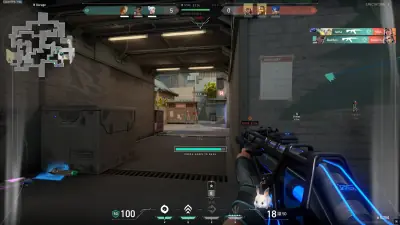
Valorant Sensitivity Guide: Find the Right DPI and eDPI
Choosing a Valorant sensitivity can be confusing. This guide explains DPI and eDPI, shows how to calculate your effective sensitivity, and offers a practical testing method.
Mouse sensitivity affects how easily you can turn, track targets, and make small adjustments while playing Valorant.
Set it too high and small hand movements may send your crosshair past a target. Set it too low and turning quickly may feel uncomfortable, especially if you have limited desk space.
There is no single sensitivity that works for everyone, but understanding DPI and eDPI makes the process much easier.
What do DPI and sensitivity mean?
DPI describes how far your mouse cursor or pointer moves relative to physical mouse movement, based on the mouse's configured sensitivity.
Valorant also has an in-game mouse sensitivity setting. Both values contribute to how far your view moves when you move the mouse.
That is why comparing only in-game sensitivity can be misleading. Two players using different mouse DPI settings may have very different aiming speeds even when their in-game sensitivity values match.
What is eDPI in Valorant?
Effective DPI, commonly called eDPI, combines mouse DPI with in-game sensitivity.
The calculation is straightforward:
eDPI = mouse DPI × in-game sensitivity
For example, if your mouse is set to 800 DPI and your in-game sensitivity is 0.30:
800 × 0.30 = 240 eDPI.
If another player uses 1600 DPI and 0.15 in-game sensitivity, the result is also 240 eDPI.
These examples illustrate the calculation. They are not recommendations that every player should use the same value.
How to find your starting sensitivity
Begin with a setting that allows you to turn comfortably without losing control of small adjustments.
Try the following process.
Step 1: Check your mouse DPI
Open your mouse manufacturer's software, if applicable, and confirm the active DPI setting. If you do not know what you currently use, identify it before changing your in-game sensitivity.
Avoid changing both DPI and in-game sensitivity at the same time.
Step 2: Test your movement range
Enter the practice range and move your mouse from one side of your comfortable mousepad area to the other.
You should be able to turn and reacquire targets without repeatedly lifting your mouse or running out of space.
The amount of physical movement needed will depend on your desk, mousepad, and preferred play style.
Step 3: Practice small adjustments
Track stationary targets and move between targets at different distances.
Notice whether you regularly overshoot or undershoot. If your crosshair repeatedly passes the target, try a small reduction in sensitivity. If you cannot turn comfortably, test a modest increase.
Step 4: Keep the setting consistent
Once you find a comfortable baseline, use it for several sessions before making another adjustment.
Constantly switching sensitivity makes it harder to develop consistent mouse control.
Low sensitivity versus high sensitivity
Low sensitivity generally requires more physical mouse movement to turn the same amount. Some players find this helpful for controlled adjustments, but it requires sufficient desk space.
High sensitivity allows quicker turns with smaller physical movements. It can be convenient in a compact setup, although fine adjustments may feel harder for some players.
Neither approach automatically makes someone a better player. Comfort, technique, and consistent practice matter more than choosing a label such as low or high sensitivity.
Common sensitivity mistakes
Copying a professional player's settings without testing them. Their mousepad, grip, physical habits, and preferences may differ from yours.
Changing sensitivity after every bad match. A short losing streak does not prove that your settings are wrong.
Ignoring mouse acceleration or inconsistent input settings. Check your mouse and operating-system configuration if movement feels unpredictable.
Confusing sensitivity with accuracy. Sensitivity affects movement speed, but crosshair placement, movement discipline, timing, and target tracking still need practice.
How often should you change sensitivity?
Make adjustments when you can identify a repeated problem, not simply because another setting looks appealing.
A small change can be enough. Record your previous DPI and in-game sensitivity so you can return to a familiar configuration if needed.
Final thoughts
Finding your Valorant sensitivity is a process of testing and refinement. Calculate your eDPI, begin with a comfortable setting, and evaluate how reliably you can move between targets.
The objective is not to discover a universally perfect number. It is to build a consistent aiming setup that feels natural and gives you room to improve.